eSIM Not Working? 12 Common Problems and Quick Fixes for Travelers
Quick Answer: If your eSIM isn't working abroad, check that Data Roaming is enabled, verify your APN settings match your provider's requirements, restart your device, and confirm your eSIM plan is active. Most issues resolve in under 2 minutes with the right steps.
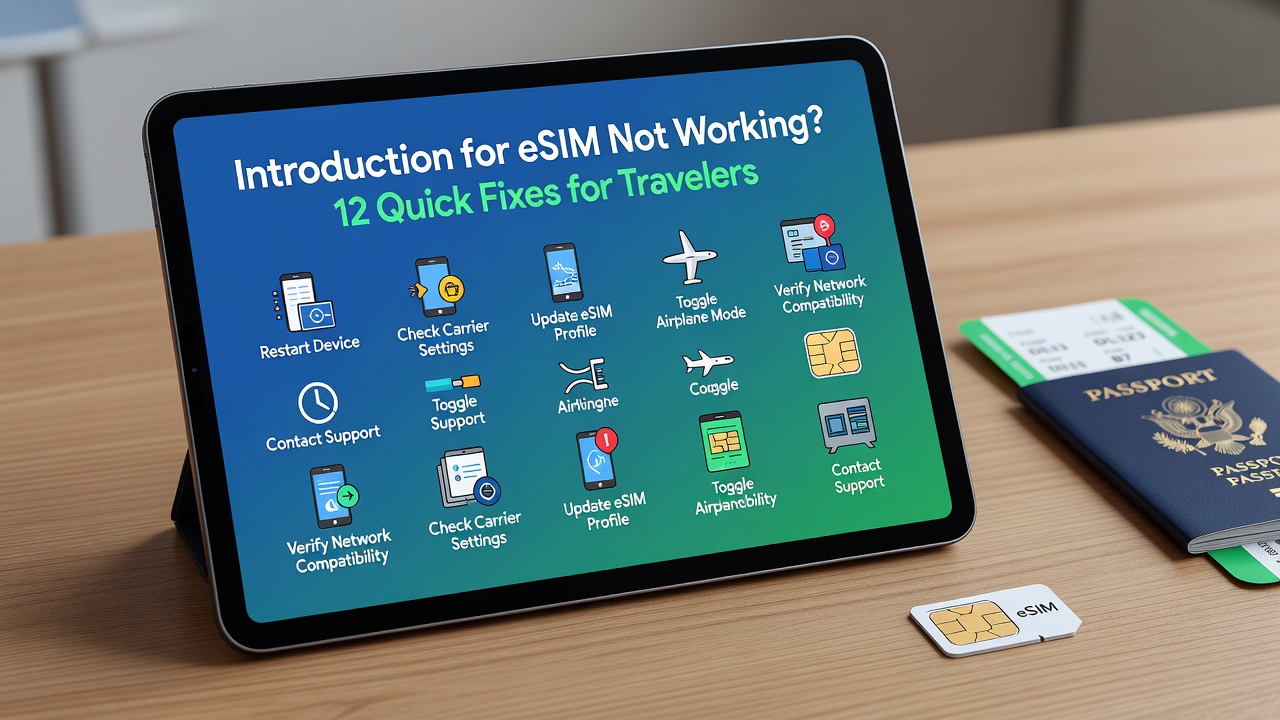
Introduction
You're standing in a foreign airport, luggage in hand, and your eSIM — the digital SIM card you bought for seamless travel data — just won't connect. No bars. No data. No maps loading. Sound familiar?
eSIM technology has revolutionized how travelers stay connected. No more hunting for local SIM cards at kiosks or paying outrageous roaming fees. But like any technology, eSIMs can fail at the worst possible moment. The good news? Most eSIM problems are fixable in minutes if you know what to check.
This guide covers the 12 most common eSIM problems travelers face, organized by symptom, with platform-specific fixes for iOS and Android. Each section follows a quick-fix format: identify the problem, apply the solution, verify it worked.

1. eSIM Activation Failed or Stuck on "Activating"
Symptom: You scan the QR code or enter the activation code, but the eSIM status shows "Activating" indefinitely or throws an error.
Quick Fix
- Check internet connection: You need Wi-Fi or cellular data to activate an eSIM. Connect to airport/hotel Wi-Fi first.
- Restart the activation: Go to Settings > Cellular/Mobile Data, delete the stuck eSIM profile, and re-scan the QR code.
- Verify the QR code hasn't expired: Most eSIM providers set QR codes to expire after 24-72 hours. Contact support for a fresh one if needed.
- Ensure your phone is unlocked: Carrier-locked devices won't accept third-party eSIM profiles. Call your home carrier to confirm.
Verify: Settings should show the eSIM as "Active" or "On" with a carrier name.
2. No Data Connection After Activation
Symptom: eSIM shows as active, but websites won't load and apps report "No Internet Connection."
Quick Fix
- Turn on Data Roaming: This is the #1 culprit. Go to Settings > Cellular/Mobile Data > turn ON Data Roaming. Most eSIM plans require this even if the provider says "no roaming fees."
- Set eSIM as primary data line: On dual-SIM phones, your physical SIM may be trying to handle data. Set the eSIM as the default data line.
- Toggle Airplane Mode: Turn Airplane Mode on for 10 seconds, then off. This forces your phone to re-register with local networks.
- Check coverage: Verify your eSIM provider supports the country and specific network you're on.
Verify: Open a web browser or run a speed test. Data should flow within 30 seconds.
3. Wrong or Missing APN Settings
Symptom: eSIM is active, data roaming is on, but you still have no connection. Some apps work (like iMessage) but web browsing doesn't.
Quick Fix
An APN (Access Point Name) tells your phone how to connect to the carrier's data network. Wrong APN = no data.
- Get the correct APN from your eSIM provider — check their website, app, or confirmation email. Common formats include names like "globaldata" or "internet."
- iOS: Settings > Cellular/Mobile Data > [Your eSIM] > Cellular Data Network > enter APN in the Cellular Data field. Leave username/password blank unless specified.
- Android: Settings > Network & Internet > Mobile Network > Advanced > Access Point Names > Add new APN. Enter the name and APN exactly as provided. Save and select it.
- Restart your phone after changing APN settings.
Verify: Load a webpage. If APN was the issue, data should work immediately after restart.
4. eSIM Works on iPhone But Not Android (and Vice Versa)
Symptom: You bought an eSIM that worked on your iPhone last trip, but your Android won't connect now — or the reverse.
Quick Fix
- Check eSIM compatibility: Not all eSIMs are cross-platform. Some providers issue separate QR codes for iOS and Android. Verify you have the right version.
- Android: Some Samsung and Google Pixel models require a manual carrier bundle update. Go to Settings > Software Update and install any pending updates.
- iOS: Ensure you're on iOS 12.1 or later ( Settings > General > About). Earlier versions don't support eSIM.
- Re-download the profile: Delete and re-add using the platform-specific QR code.
Verify: Check your phone's IMEI on the provider's compatibility list before purchasing.
5. iPhone-Specific: "No Service" After Installing eSIM
Symptom: iPhone shows "No Service" or "Searching" constantly after eSIM installation.
Quick Fix
- Reset Network Settings: Settings > General > Transfer or Reset iPhone > Reset > Reset Network Settings. This clears all Wi-Fi passwords and VPN configs but often fixes stubborn carrier registration issues. You'll need to re-enter Wi-Fi passwords afterward.
- Update Carrier Settings: Go to Settings > General > About. If a carrier settings update is available, a popup will appear. Tap Update.
- Check eSIM line settings: Settings > Cellular > [eSIM line] > ensure "Turn On This Line" and "Data Roaming" are both enabled.
- Re-seat the eSIM: Remove the eSIM profile entirely (Settings > Cellular > [eSIM] > Remove), restart, and re-add using the original QR code.
Verify: Signal bars should appear within 1-2 minutes of re-adding the profile.
6. Android-Specific: eSIM Shows Active But No Internet Access
Symptom: Android reports the eSIM is active and connected to a network, but apps and browsers show offline.
Quick Fix
- Check Preferred Network Type: Settings > Network & Internet > Mobile Network > Preferred Network Type. If set to 5G but local coverage is only 4G/LTE, drop it to LTE/4G.
- Disable Physical SIM Data: On dual-SIM Androids, the physical SIM may be competing. Go to Settings > Network & Internet > SIM cards > disable data on the physical SIM.
- Clear APN cache: Settings > Network & Internet > Mobile Network > Advanced > Access Point Names > menu (three dots) > Reset to default. Then re-enter the provider's APN.
- Enable Roaming in Android specifically: Some Android skins (Samsung One UI, Xiaomi MIUI) have a separate roaming toggle per SIM card. Check both system Settings AND the Samsung-specific Mobile Network menu.
Verify: Run a speed test or open a non-cached website.
7. eSIM Data Suddenly Stops Working Mid-Trip
Symptom: Everything was fine for days, then data just cuts out.
Quick Fix
- Check data balance: Log into your eSIM provider app or website. You may have hit your data limit. Many eSIM plans throttle or cut off after the allowance.
- Plan expiry: Some eSIM plans expire after a set number of days (e.g., 7 days, 30 days). Check the activation date.
- Network switching: Your phone may have hopped to an unsupported partner network. Toggle Airplane Mode or manually select a supported carrier in Settings > Carrier/Mobile Network > Network Selection.
- Provider outage: Check your provider's status page or social media. Regional outages happen.
Verify: If data balance is zero, top up or purchase a new plan. If expired, you'll need a fresh eSIM.
8. Can Make Calls But No Mobile Data
Symptom: Phone calls work (on physical SIM or eSIM if voice-enabled), but internet browsing fails.
Quick Fix
- This is almost always an APN or data roaming issue. Voice and data use separate network pathways.
- Confirm data is assigned to the eSIM: On dual-SIM phones, you may be making calls on one line but trying to use data on another that's not configured. Set the eSIM as the active data line.
- Check for VPN conflicts: An active VPN may route traffic through a blocked server. Disable VPN temporarily.
- MMS/VoLTE interference: Some carriers require specific settings for data but not voice. Try disabling VoLTE temporarily in Settings > Mobile > Voice & Data.
Verify: Browse to a site you've never visited (to avoid cached pages).
9. eSIM Shows "No SIM" or Disappears Entirely
Symptom: The eSIM profile vanishes from your phone's settings, or shows "No SIM" where it previously appeared.
Quick Fix
- Don't panic — profiles don't delete themselves. Check if you're looking at the right settings menu. On iPhone: Settings > Cellular > scroll down to see all lines. On Android: Settings > Network & Internet > SIM cards.
- Software update glitch: If you updated iOS/Android recently, the eSIM may need reactivation. Re-scan the QR code.
- iCloud/iPhone transfer issues: If you restored from a backup or transferred to a new iPhone, eSIMs don't always migrate. You'll need to reinstall.
- Contact your provider for a replacement QR code. Most providers allow multiple activations or reissues.
Verify: The eSIM should reappear in your cellular/mobile settings as a recognized line.
10. Slow Data Speeds on eSIM
Symptom: Connection works, but pages load slowly, videos buffer, and maps lag.
Quick Fix
- Check throttling policy: Many cheap eSIM plans throttle speeds after a daily or total data threshold. Read your plan's fine print.
- Switch network generation: If on 5G with weak signal, force 4G/LTE for more stable speeds. Settings > Mobile > Preferred Network Type.
- Congestion: You're sharing bandwidth with locals at tourist hotspots (airports, train stations). Try again in 30 minutes or move to a less crowded area.
- APN speed restrictions: Some APNs are optimized for IoT devices with capped speeds. Verify you're using the "high-speed" or "smartphone" APN from your provider, not a generic one.
Verify: Run a speed test. Acceptable travel speeds are typically 5+ Mbps for maps and messaging, 25+ Mbps for video calls.
11. Can't Send or Receive SMS on eSIM
Symptom: Data works fine, but SMS messages (especially OTP codes from banks) won't arrive.
Quick Fix
- Most travel eSIMs are data-only — they don't include a phone number or SMS capability. Check your plan details before expecting texts.
- If your plan includes SMS: Ensure the eSIM line is set to handle SMS. iPhone: Settings > Messages > Send & Receive > select the eSIM number. Android: Messaging app > Settings > SIM card for SMS.
- SMS over Wi-Fi: If data works but SMS doesn't, try enabling Wi-Fi Calling (if your home carrier supports it) to receive SMS over Wi-Fi instead.
- Bank OTP alternatives: Many banks now offer app-based or email OTPs. Switch before traveling if your eSIM is data-only.
Verify: Send yourself a test SMS or check if your bank offers non-SMS 2FA.
12. eSIM Conflicts with Physical Home SIM
Symptom: Your home physical SIM and new eSIM seem to fight for dominance — calls drop, data switches randomly, or one SIM stops working.
Quick Fix
- Assign clear roles: In dual-SIM settings, designate the eSIM as "Primary" or "Data" and the physical SIM as "Secondary" or "Calls Only." Don't let the phone auto-switch.
- iPhone: Settings > Cellular > Cellular Data > select the eSIM. Under Default Voice Line, choose your physical SIM if you want to keep your home number for calls.
- Android: Settings > Network & Internet > SIM cards > set eSIM for mobile data and physical SIM for calls and SMS.
- Disable unused line temporarily: If you only need data from the eSIM, turn off the physical SIM line entirely to eliminate conflicts.
Verify: Test a phone call (should route through physical SIM) and load a webpage (should use eSIM data).
Key Takeaways
- Data Roaming is the most common fix — always verify it's enabled for your eSIM line before trying anything else.
- APN settings are critical — wrong APN means data works partially or not at all, even when everything else looks correct.
- iOS and Android handle eSIMs differently — use platform-specific troubleshooting steps; fixes rarely translate 1:1 between platforms.
- Most "broken" eSIMs just need a restart, re-scan, or settings tweak — actual defective eSIM profiles are rare.
- Check your plan limits and expiry dates before assuming the technology failed. Data caps and time limits are common culprits.
- Travel eSIMs are typically data-only — don't expect SMS or voice unless explicitly included in your plan.
- Keep your QR codes and provider support contacts accessible offline — screenshot them before you travel.
Frequently Asked Questions
Why is my eSIM not activating?
eSIM activation usually fails due to no internet connection during setup, an expired QR code, a carrier-locked phone, or a stuck profile. Connect to Wi-Fi, verify your phone is unlocked, and re-scan a fresh QR code from your provider if needed.
Do I need to turn on Data Roaming for eSIM?
Yes. Almost all travel eSIM plans require Data Roaming enabled to connect abroad, even if the provider advertises "no roaming fees." This setting tells your phone to use foreign networks.
What is an APN and why does it matter?
An APN (Access Point Name) is a gateway address your phone uses to access the carrier's internet service. Incorrect APN settings block data entirely while voice and signal bars may still appear.
Can I use eSIM on any phone?
No. Your phone must be eSIM-compatible and carrier-unlocked. Most iPhone XS and newer, Samsung Galaxy S20 and newer, Google Pixel 3 and newer support eSIM. Check your specific model before purchasing.
Why did my eSIM stop working suddenly?
Sudden failures usually mean you hit a data limit, the plan expired, you moved out of coverage, or your phone switched to an unsupported network. Check your provider app for balance and expiry details first.
Is my travel eSIM data-only or does it include calls and SMS?
Most budget travel eSIMs are data-only with no phone number. Premium plans may include voice and SMS. Check your plan details before departure — assume data-only unless stated otherwise.
Can I use my physical SIM and eSIM at the same time?
Yes, if your phone supports dual-SIM. You can assign the physical SIM for calls/SMS and the eSIM for data. Configure these roles in your phone's cellular or network settings to avoid conflicts.
How do I fix "No Service" on iPhone after installing eSIM?
Reset Network Settings, update carrier settings, enable Data Roaming for the eSIM line, and re-add the profile if needed. Most iPhone-specific issues resolve after a network settings reset.
Why is my eSIM data slow?
Slow speeds usually mean you've been throttled after hitting a data cap, you're on a congested network, or you're connected to a weak 5G signal that would be faster on 4G/LTE. Check your plan's speed policy.
What should I do if nothing fixes my eSIM?
Contact your eSIM provider's support via their app, website chat, or email. Have your order number, device model, and a description of what you've tried ready. Most providers issue replacements or refunds for unresolved technical issues.
Conclusion
eSIM problems while traveling are frustrating — but they're rarely permanent. In most cases, the fix is a settings toggle, a restart, or a quick APN update away. The key is knowing what to check in what order, which is exactly what this guide provides.
Before your next trip, bookmark this page and screenshot your eSIM QR codes. Preparation beats panic every time. And if you're still shopping for a reliable travel eSIM, compare plans that include clear setup instructions, responsive support, and coverage for your specific destinations.
Safe travels — and may your signal bars always be full.